Getting started
Item setup
Catalog management
Walmart Fulfillment Services (WFS)
WFS basics
Getting started with WFS
WFS item setup
Select items for WFS
WFS prohibited products policy
Item setup methods: Overview
Convert seller-fulfilled items to WFS
Item template for WFS
WFS trade item configuration
WFS hazardous materials (hazmat): Item setup
WFS compliance: Safety Data Sheets (SDS)
WFS compliance: Batteries
WFS multi-box: Set up items
WFS big and bulky items
Shipping to WFS
WFS Inventory management
Walmart Cross Border - Imports
Walmart Multichannel Solutions
WFS growth opportunities
WFS policies & standards
WFS programs & services
Troubleshooting
Seller Fulfillment Services
Listing optimization
Order management
Taxes & payments
Policies & standards
Growth opportunities
Advertising
Walmart Seller appNew


When you sell on Walmart Marketplace, you have 2 fulfillment options: seller-fulfilled and Walmart-fulfilled. Seller-fulfilled means you manage inventory, shipping and customer service yourself. Walmart-fulfilled means you send items to our fulfillment centers, where we take care of storage, packing, shipping, returns and customer support on your behalf. You must be enrolled in Walmart Fulfillment Services (WFS) to use this option.
In this guide, learn how to switch an item to Walmart-fulfilled, what information is required and how to correct errors.
What to expect
You can convert almost any item you currently fulfill on your own to Walmart-fulfilled. Some exceptions apply, though, so make sure to check WFS product requirements and WFS prohibited products policy.
When you use WFS to fulfill items, you’ll keep the same information from your seller-fulfilled listing. However, we ask for extra information to safely store and handle your items. Here’s some, but not all, information you’ll need to convert an item:
- State restrictions
- Country of origin
- Dimensions and weight of the item, including packaging
- Hazardous material details, such as battery type and Safety Data Sheet
After submitting an item, we’ll review the item. If there are no errors, your item will be automatically published. If your item has hazardous materials, it will be held for up to 3 business days for a compliance review.
Not sure which items to convert? Go to Success Hub and select Fulfill with WFS to view recommended items and potential sales increase.
Convert a single item
Step 1 – Get started
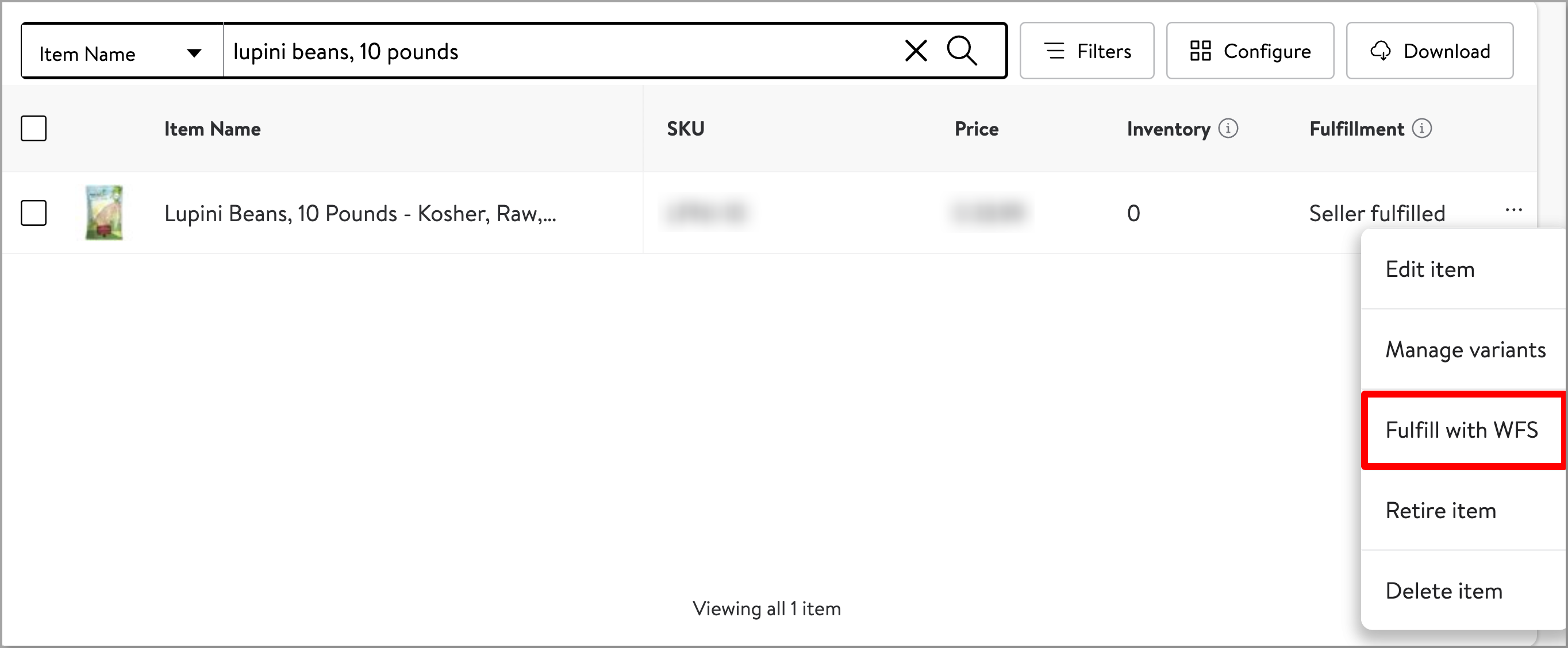
Navigate to Catalog and select the item you want to convert to Walmart-fulfilled. Next, scroll to the end of the row and select the 3 dots. Choose Fulfill with WFS.
Step 2 – Item details and attributes
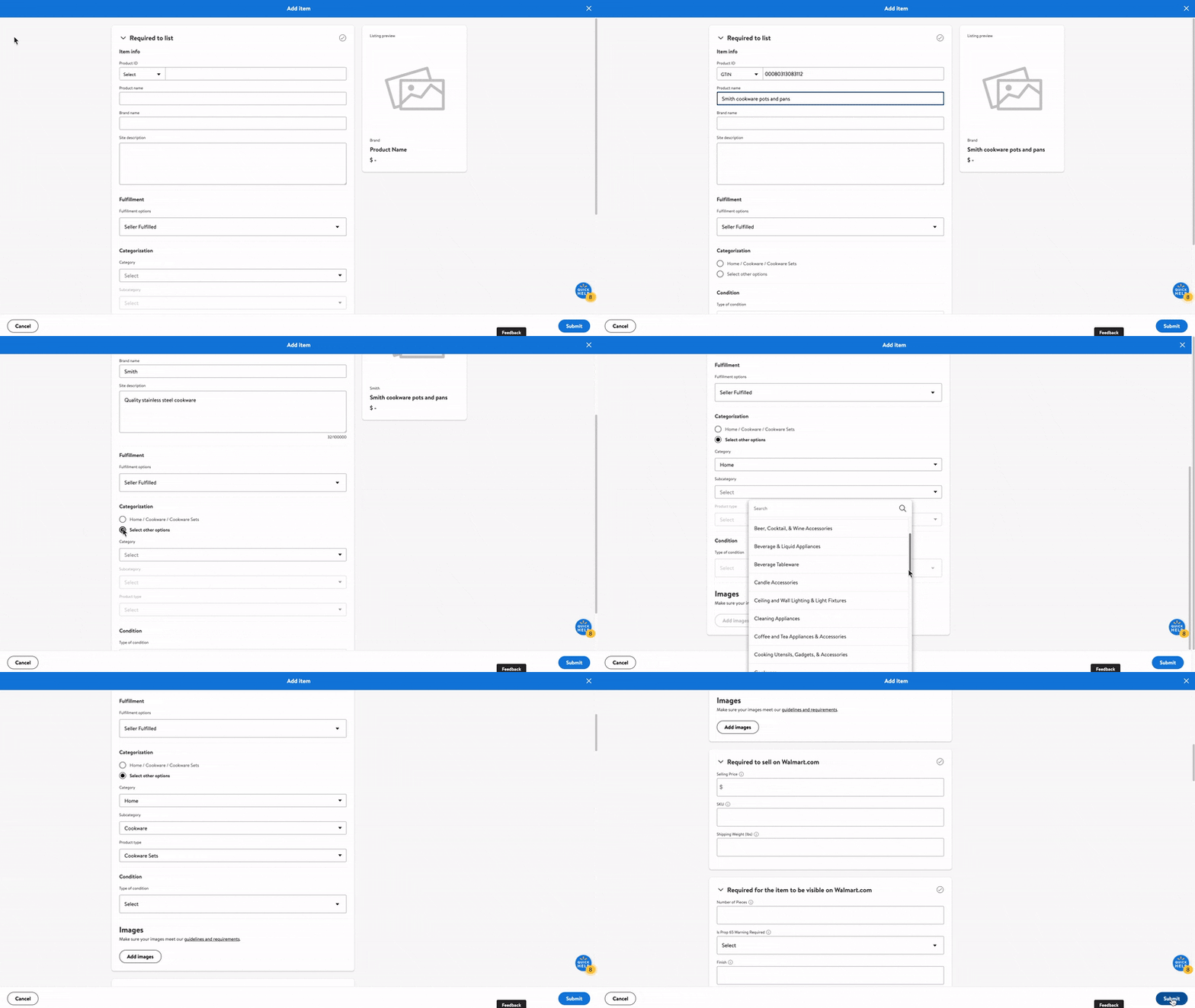
New sections and fields will appear for your Walmart-fulfilled item, such as compliance and dimensions. Once all the required fields are complete, select Submit. Then track the status to check for errors and compliance reviews.
Make sure your item dimensions are accurate. We measure items during receiving, and mismatched dimensions may affect your WFS fees. We do not provide images of our measurements, but you can download the Storage report to compare dimensions.
Convert multiple items
Step 1 – Get started
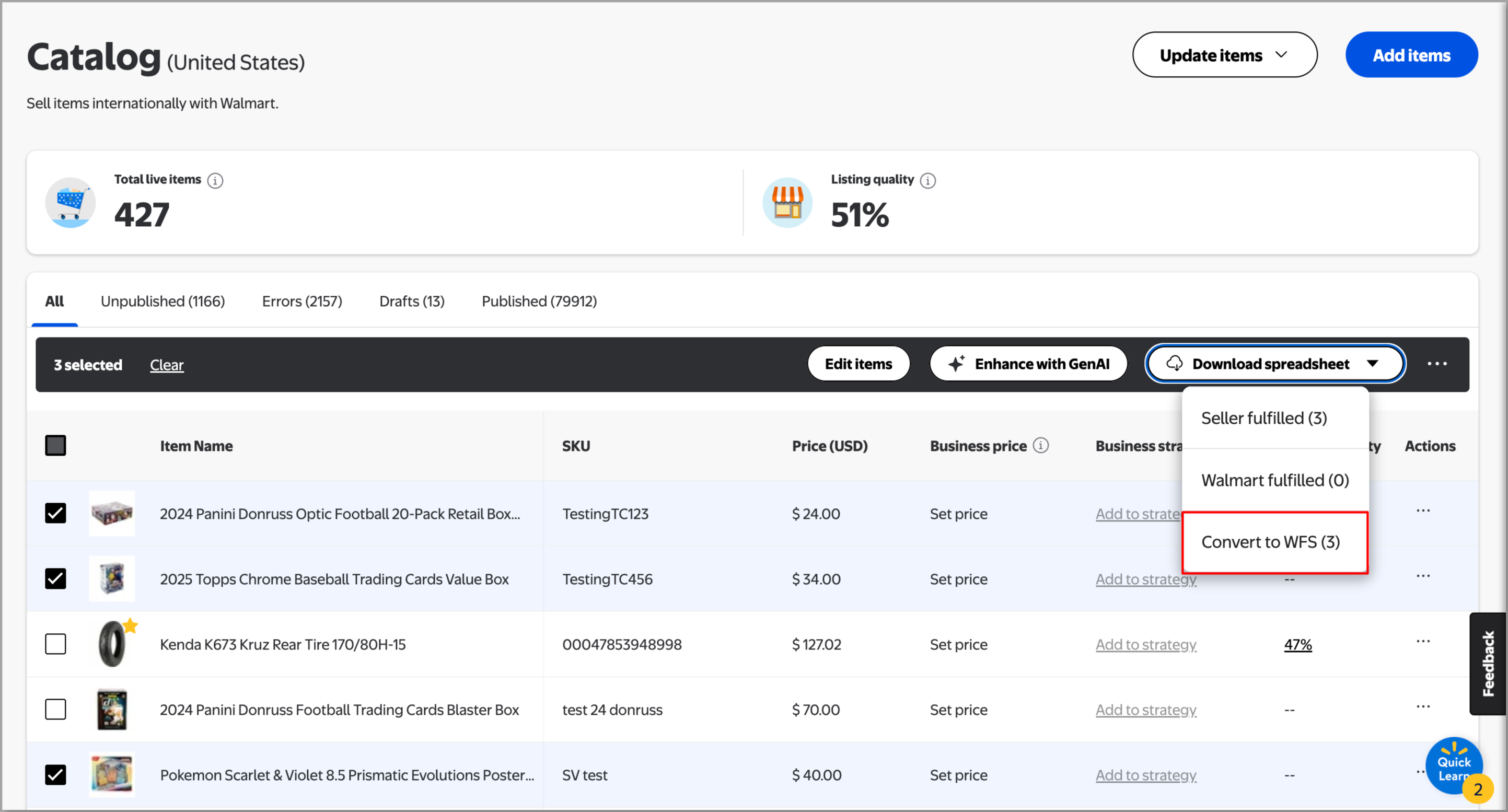
Navigate to Catalog and select all items you want to convert to Walmart-fulfilled. You can also filter by fulfillment type to find all seller-fulfilled items. In the actions bar, select Download spreadsheet and then Convert to WFS.
Step 2 – Download template
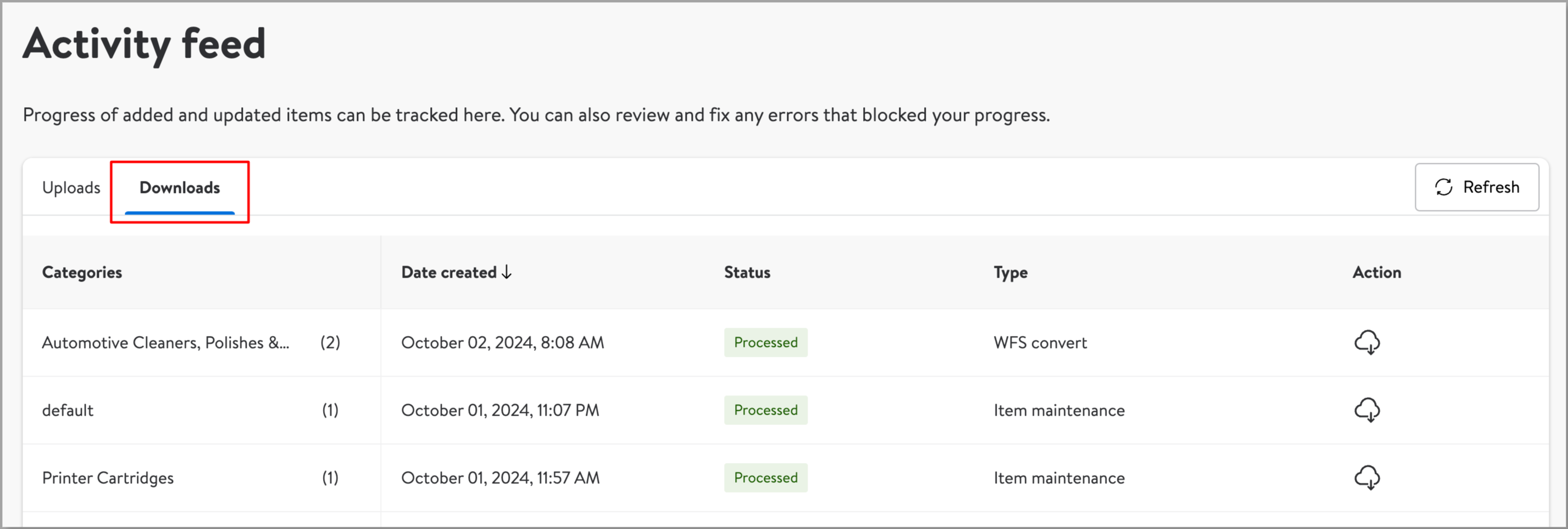
Go to the Activity Feed page. From the Downloads tab, download the WFS convert template you just created. Fill in the blank fields with required information about your items. For best practices and tips on filling out the template, view Item template for WFS.
Your items can’t be published if required or conditionally required fields are missing. Changing the data in the first 6 rows, including tab names, may also lead to data errors. Go to Troubleshoot WFS item setup errors to learn more.
Step 3 – Upload template
Once you’ve filled out the template, navigate to the Catalog page and select Add items. Select the Upload in bulk link located under Add thousands of items using a spreadsheet. Upload the completed template, then track the status to check for errors and compliance reviews.

Our system will immediately check for common errors, such as missing fields, wrong data types and invalid check digits. If there are any, we’ll generate an error report for you to download. In the report, you’ll see the number of errors and descriptions in columns A and B. The cells that contain errors will also be highlighted in yellow. Correct the errors in the report and reupload it.

Update with GTINs
If you have a lot of items to convert, you can copy-paste GTINs to create a template instead. It’s a quick and easy way to convert items without needing to select items individually.
Step 1 – Get started
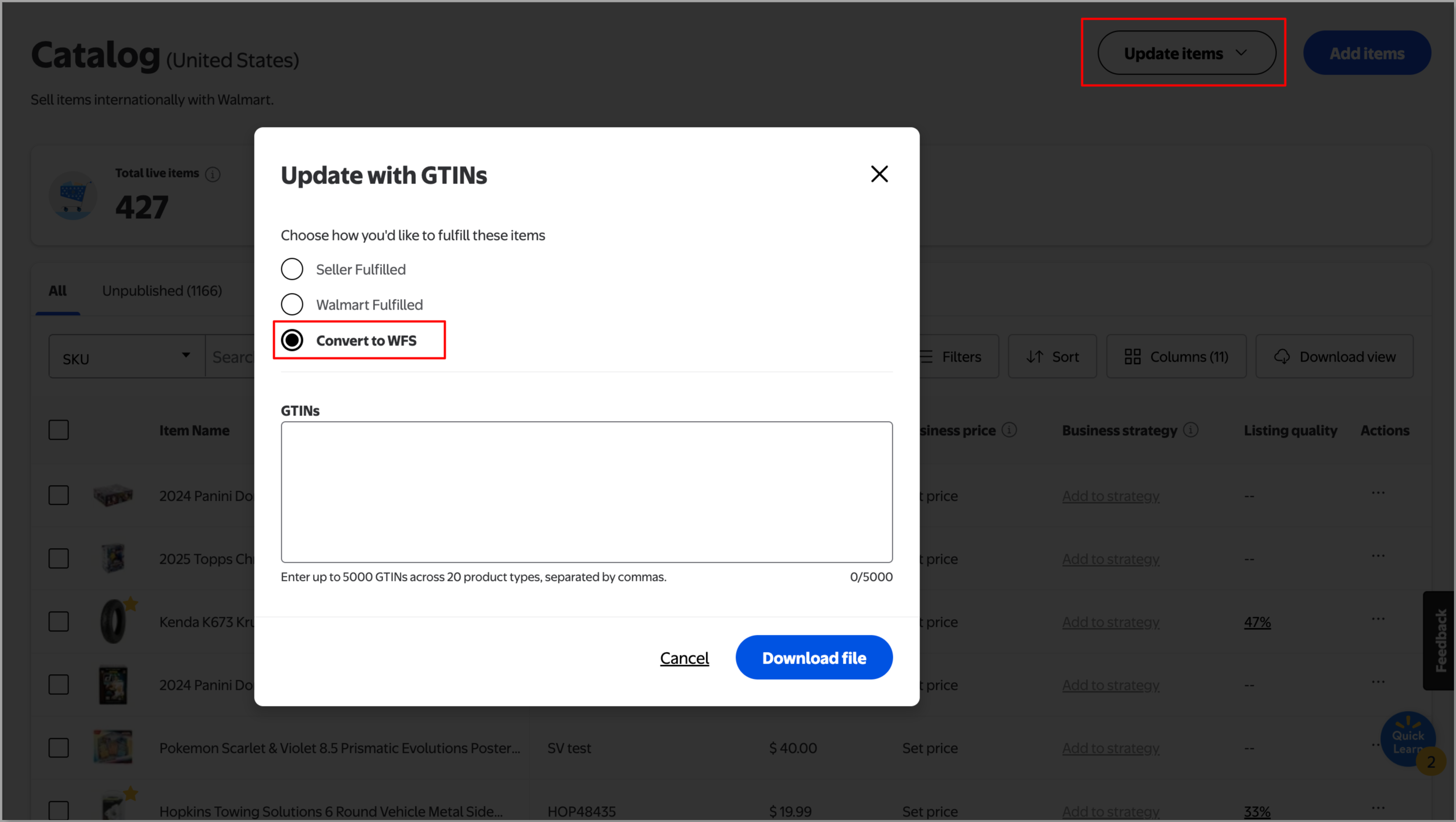
Navigate to Catalog and select Update items. Choose Update with GTINs. In the pop-up, select Convert to WFS. You can then enter up to 5,000 GTINs to convert. If you paste a list of GTINs, we’ll automatically separate each GTIN for you and check for errors. When you’re done, select Download file to create the template.
Step 2 – Download template
Go to the Activity Feed page. From the Downloads tab, download the WFS convert template you just created. Fill in the blank fields with required information about your items.
Step 3 – Upload template
Once you’ve filled out the template, navigate to the Catalog page and select Add items. Select the Upload in bulk link located under Add thousands of items using a spreadsheet. Upload the completed template, then track the status to check for errors and compliance reviews.
Track status
After you submit an item, track the publishing status from the Uploads tab in the Activity Feed. If there are no issues, your item will be published within 24 hours. Look for these key columns in the table:
- Feed ID: This is the reference ID for your template, generated during upload. Include this feed ID in any Support cases.
- Errors: If your item has errors, you’ll see a number in this column. Select the number to view errors. You can then fix errors directly in Seller Center and resubmit the item.
- Status: The status shows the progress of your item in the system. Submitted means you sent in items. Pending means our system is still processing items. Processed means they’ve either been published or are waiting for compliance review on the Pending Review page. Error means there’s incorrect information that’s stopping the item from being published.
- Feed type: This describes the type of submission. You can filter by WFS Convert to see only items that are being converted.
- Error report: If you have several errors, you can download a spreadsheet to view all of them at once.
If your items have hazardous materials, they may be put on hold for up to 3 business days for a compliance review. Go to the Pending Review page for updates.
Troubleshoot errors
If your item hasn’t been published yet, there may be errors you need to fix. Make sure to go to these pages:
- Check Activity Feed after you submit any item. If there are any issues, select the number in the Errors column to review or download a report from the Error report column. Then make changes and resubmit the items or template.
- Check Pending Review if your item contains a hazardous material or doesn’t have any errors on the Activity Feed. Select the Action Needed status to fix errors and resubmit.
This table lists the most common errors during WFS item setup and how to fix them. Some will only apply if you’re adding a single item, multiple items or using APIs. For more help with errors, go to Troubleshoot WFS item template errors.
Error message | Next steps |
|---|---|
‘Each’ pack config is required. | Add the width, height, depth and weight of the item, including any packaging. |
`Product is or Contains this Battery Type` is a required attribute. Enter value for the attribute `Product is or Contains this Battery Type`. | If your item is or contains a battery, select the type from the dropdown list. Find this information on the battery, its packaging or within a Safety Data Sheet. If your item doesn't have a battery, choose "Does Not Contain a Battery."
|
‘Country of Origin’ is a required attribute. Enter value for the attribute ‘Country of Origin.’ | From the dropdown list, select the country where the item or its components was manufactured. |
‘Selling Price’ is a required attribute. Enter value for the attribute ‘Selling Price.’ | Add the price that the customer pays for the item. Do not include commas or currency symbols. |
Under hazmat review. Item will be on-hold for up to 48 business hours while review process takes place. Please use Seller Center ‘Pending Review’ page for status tracking. | Your item may contain a chemical, aerosol, pesticide or battery. The compliance team will put the item on hold to review, which can take up to 3 business days. Track the status on the Pending Review page or Hazmat Items On Hold API.
|
If you can’t fix errors on your own, please contact Support by selecting the Help button in the Seller Center menu bar. Make sure to include this information:
- Impacted GTINs or UPCs
- Feed ID