Learn how to adjust and customize your shipping settings if you choose to use Simplified Shipping Settings to fulfill your Marketplace orders. In this guide, you’ll learn how to add multiple shipping methods and assign your preferred carriers and shipping rates to different regions after you complete onboarding.
Simplified Shipping Settings is compatible with free and paid shipping, virtual packs and most domestic USPS, UPS and FedEx services. However, it doesn’t support Ship to Store items, international or freight shipping or third-party logistics services such as Flexport.
Manage shipping settings
Step 1 – Get started
Navigate to the Shipping Profile section on the Account settings page in Seller Center and select Simplified Shipping Settings. Select Get started to begin.
Step 2 – Update or add a fulfillment center
First, review your active fulfillment centers. You can either update the settings of an existing center or add a new one. To modify an active existing fulfillment center, select Edit next to the center’s name. Make changes to details such as address or operating schedule, then select Update to apply changes.
If you don’t have a fulfillment center set up or need to add a new one to operate from a different location or with different hours, select Add fulfillment center. Enter the fulfillment center details and select Create fulfillment center.
The accuracy of your fulfillment center settings is important to ensure Walmart selects the best location to ship your orders from and to provide accurate delivery promises based on that location. Review your fulfillment center settings to ensure that all details are correct.
Step 3 – Choose your shipping methods and carriers
- Shipping methods: Select from the following shipping options you’d like to offer: rush, expedited, standard, value and freight.
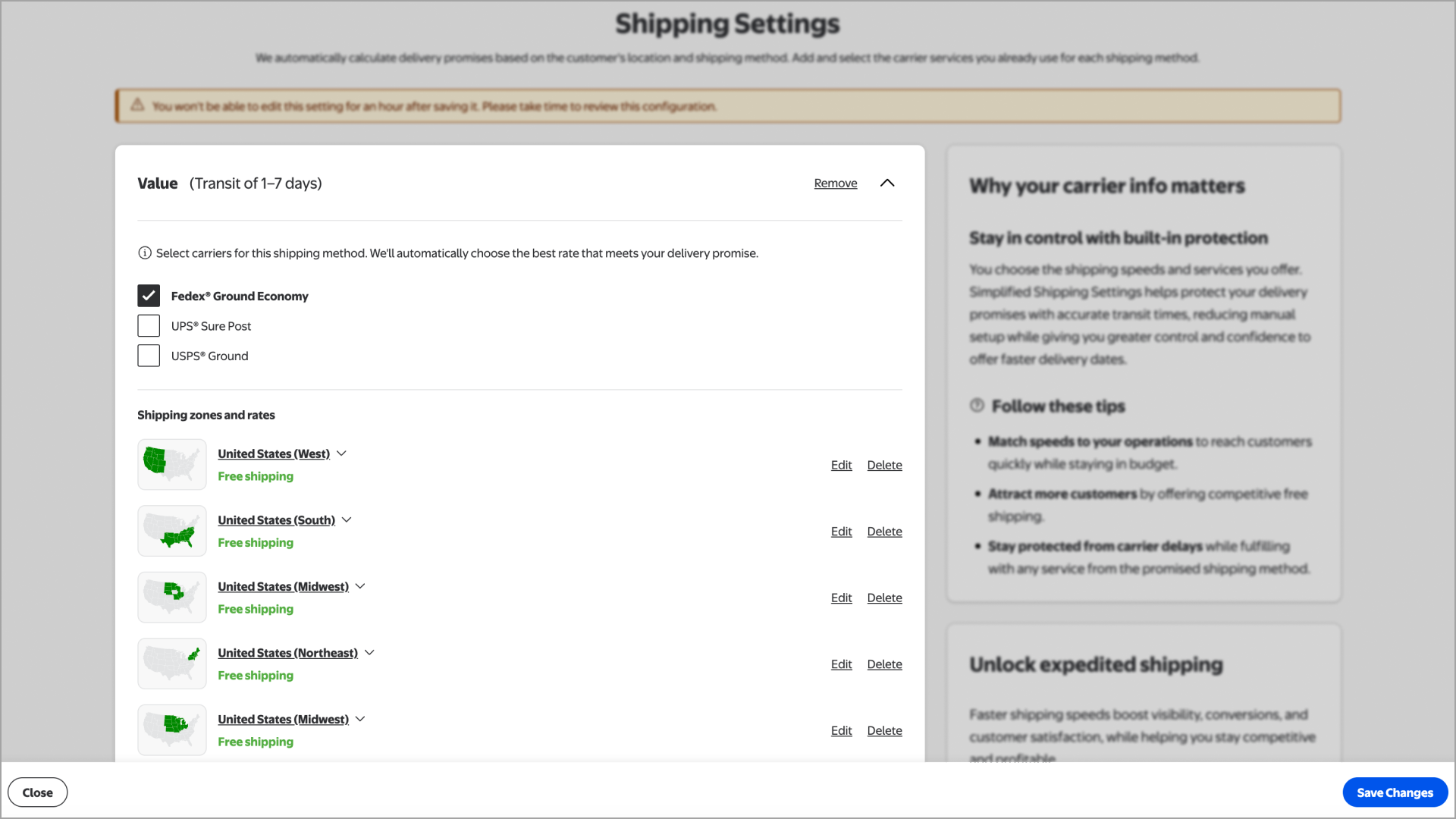
- Carrier: Choose the carrier and carrier service that you use most frequently. By default, the contiguous 48 U.S. states are selected. To edit the settings of a carrier, navigate to the carrier’s Shipping zones and rates section and Choose Edit next to the region zone. You can modify shipping charges to apply paid or free shipping to certain regions only. Update the carrier’s shipping zone or rate and choose Save changes. Select Add shipping zone to include states such as Hawaii or Alaska. To remove a shipping method, choose Remove.
To add an additional shipping option, choose Add shipping methods. Choose the shipping method then select Carriers. Select the carrier services and select Save to automatically apply your Simplified Shipping Settings to all eligible published items. - Shipping priority: Once you’ve configured your shipping methods, carriers, regions and shipping charges, Walmart calculates transit times and selects the best fulfillment center and carrier combination that provides customers the most accurate delivery promise.
Step 4 – Customize your settings (optional)
After completing your initial set up, you can customize your settings for the following:
- Shipping settings: Select Manage settings from the main page to create a custom shipping rate with paid shipping, offer free shipping or a combination of both customized by state or region.
- Free shipping: Choose this option if you're offering free shipping. If you choose this option, it's mandatory to have at least one carrier with free shipping to all 48 contiguous states.
- Paid rate: Select this option if you'd like to charge customers for shipping. You can offer only paid shipping for specific assortments using shipping rules (e.g., require paid shipping for items under $20 where free shipping isn’t profitable). Use paid-only shipping strategically as free shipping improves conversion and Buy Box performance.
- Shipping rules: Select Add shipping rule from the main page to create shipping rules for groups of items that require special shipping needs (e.g., price, brand, product type or weight). For example, you can set up preferences such as only shipping via ground for items of a certain value. You can also configure a base rate or an additional rate by weight or item count through a shipping rule.
Fill out all fields, review the information then select Continue. Name the shipping rule and review the fulfillment center configuration and shipping method. Select Continue, then review settings and select Save and Submit. Once the shipping rule is created, the system automatically finds items enabled for Simplified Shipping Settings matching your condition and assigns them the right shipping configuration. Ship methods: Ensure your top selling items are shipped using premium shipping methods to improve customer experience and sales by offering faster promises. You can then configure remaining assortments for ground shipping methods. This table lists the available shipping methods and carriers.
Ground ship methods | Premium ship methods |
|---|---|
FedEx Home Delivery | USPS Priority |
FedEx Ground Economy | UPS Next Day Air |
UPS Ground | USPS Priority Mail Express |
UPS SurePost | FedEx Express |
USPS Ground | UPS 2nd Day Air |
FedEx Overnight | |
UPS 3 Day Select | |
FedEx 2Day Express |
If you wish to not offer free shipping for any assortment, you must create a shipping rule to apply that setting to all items within the assortment.