
Getting started
Item setup
Item setup methods
Item content, imagery, and media
Variant management
Restored or Pre-Owned items
Automotive fitment
Troubleshooting
Catalog management
Seller Fulfillment Services
Listing optimization
Order management
Taxes & payments
Policies & standards
Growth opportunities
Advertising
Walmart Fulfillment Services (WFS)


This guide outlines how to add a new item to your Marketplace catalog in Seller Center if it’s not currently offered on Walmart.com. If you want to add multiple new items at once, review Add multiple items: Full setup.
Add a single item
Step 1 — Get started
Navigate to your Catalog in Seller Center and select the Add items button. Select the Create items button and choose Single item.
Use our AI assistant to help you generate content for your product name, site description and key features. Just select Help me write, provide a brief description of your item and add relevant images. Be sure to check for accuracy as AI can make mistakes. If you’re satisfied with the output, select Accept. You can still make edits after selecting Accept.
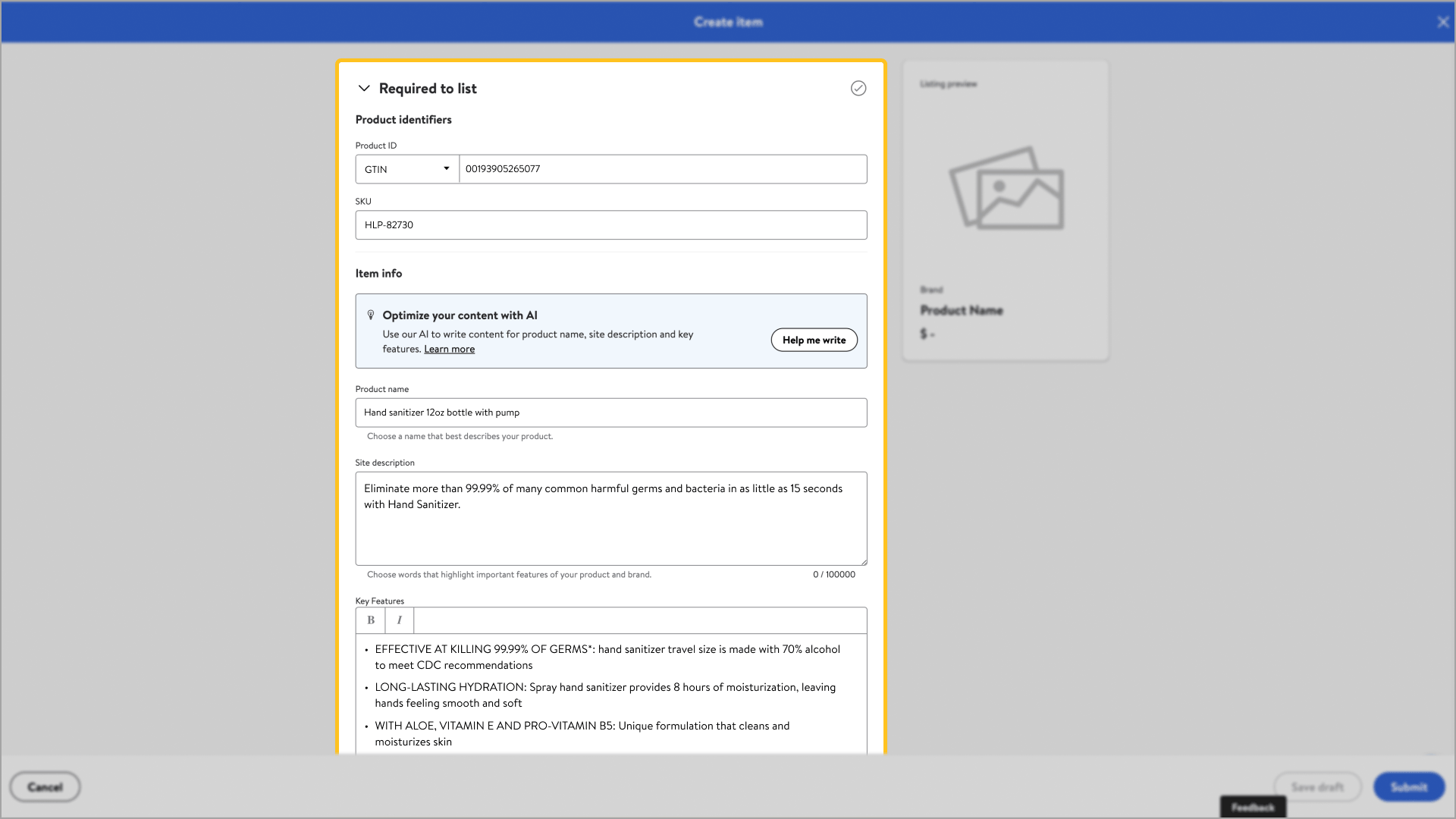
Step 2 — Item details and attributes
Once you complete the Required to list section, the system generates recommended categories in the Categorization section. Once you select your category, subcategory and product type, you’ll need to select a fulfillment option and complete the rest of the form by providing the relevant attributes.
If you aren't sure which category to choose, review our content standards. If you’re unsure what an attribute means or how to complete it, select the info icon to learn more.
Step 3 – Submit
Once all the required fields are complete, select Submit at the bottom right of the screen. After submitting your item, you can track its status from the Activity Feed in Seller Center. Updates may take up to 24 hours.
Any data errors that are detected during the updates will require extra processing time.
You’re responsible for the accuracy of the information provided and ensuring that it complies with all laws, regulations and licensing requirements regarding the sale, shipping, transportation and delivery of these items. If there are any errors, your submission won’t be processed.
Use the copy feature to quickly create a similar item that may have slightly different features such as the image. Once your initial item is set up, find the item on the Catalog page, then select Copy item from the dropdown menu in the Actions column. Then update the Required to list fields with the attributes that differ for the copied item.