

A virtual pack is a way to sell different combinations of a single product, such as paper towels sold in a two-pack or three-pack. This item setup method is helpful when a manufacturer doesn't provide pre-packaged options. In this guide, you'll learn how to create a virtual pack in Seller Center.
Participation in virtual packs is by invitation-only and not available to all Marketplace sellers.
Create a virtual pack
Step 1 — Get started
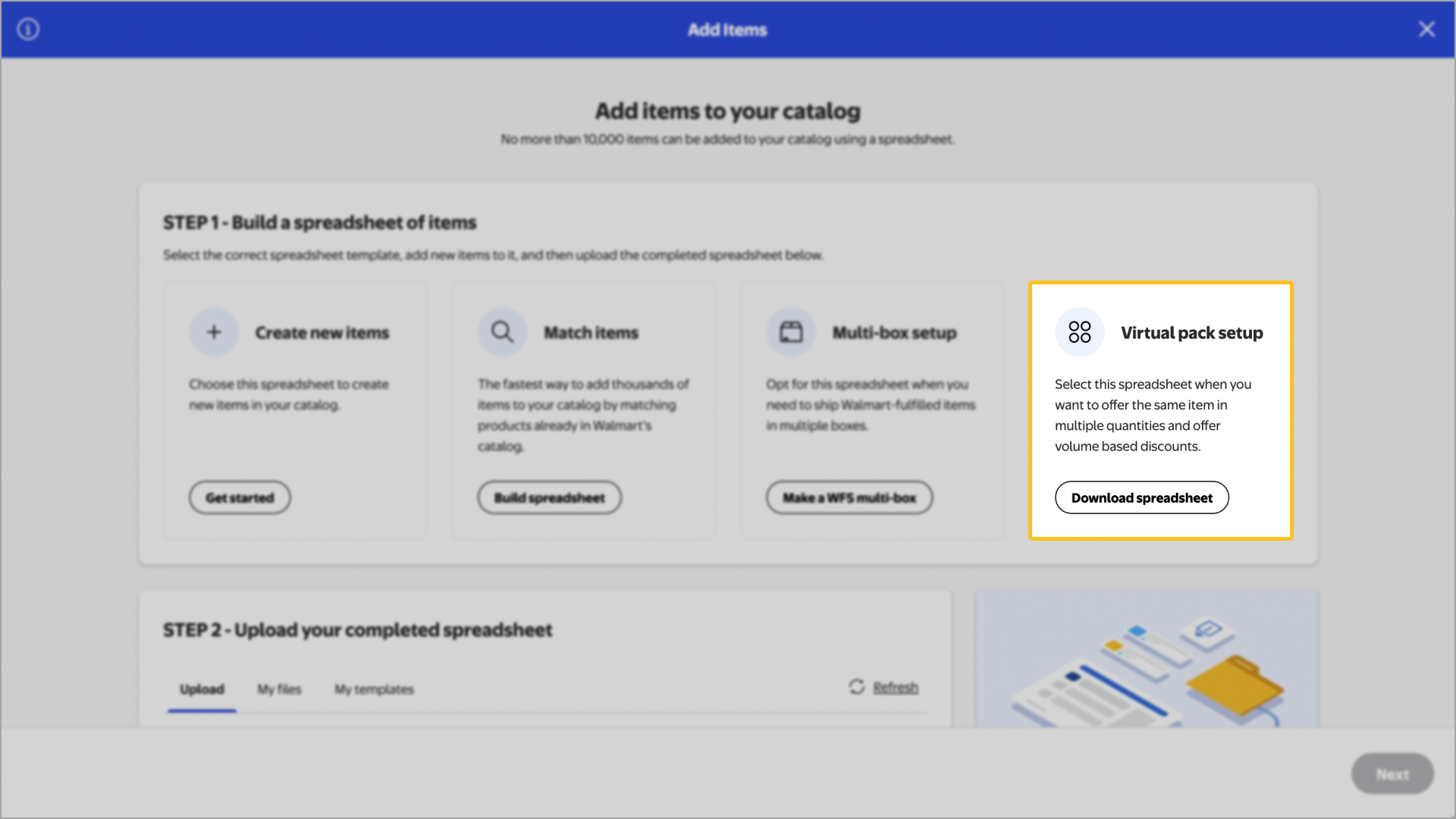
Navigate to your Catalog in Seller Center and select the Add items button. Select the Upload in bulk link under Add thousands of items using a spreadsheet. On the next page, select the Download spreadsheet button under Virtual packs.
You can only create a virtual pack for an item that’s already in your catalog.
To encourage customers to buy more of the item, you can offer the pack at a discounted price. Offering a discount is optional.
Step 2 — Complete the template
Enter as much information as possible. Make sure to fill out the required fields, or you’ll receive an error during the upload.
Required
Component GTIN: The 14-digit Global Trade Item Number for the primary item.
Virtual Pack Quantity: The number of items you want in the pack.
- Initial Discount Rate: You must enter a value in this field, such as 0 for 0% or 5 for 5%. Offering a discount is optional.
Recommended
Main image URL: The web address for an image of the pack. An image can help give customers context for their purchase.
Key Features: Any information you want to highlight about the product. The text you enter here will appear as a bulleted list in Walmart.com search results and on the item’s product pages. If this field is left blank, Walmart will use the item’s product description.
The Recommended fields are optional. You only need to complete these fields if you have extra information to add. For example, if you want to use an online image of the pack instead of uploading one of your own, enter the image's web address (URL) in the Main image URL field.
Optional
- Site Start Date and Site End Date: The dates that you want the pack to be live on Walmart.com. If these fields are left blank, Walmart will use the primary item’s start and end date.
Step 3 — Upload the template
To upload your completed template, navigate to your Catalog in Seller Center and select Add items. Select the Upload in bulk link located under Add thousands of items using a spreadsheet. You can drag and drop your file onto the browser window under Upload, or select the browse link to locate the file on your computer.
After submitting your items, you can track their status from the Activity Feed in Seller Center. Updates may take up to 24 hours. Any data errors that are detected during the updates will require extra processing time.
Step 4 — Manage your virtual pack
Once you’ve created the pack, you can manage it from your Catalog. Navigate to your Catalog in Seller Center and locate the pack's primary item (virtual packs aren't searchable). Then, hover your cursor over the item and select the Variant item button to edit the item's pack and bundle deals.
To make a single component unavailable for purchase, open the item in your Catalog and navigate to the Site Experience section. Then select the Bundle Component Transactable menu and choose No to remove the component's availability from Walmart.com. Only the virtual packs will be available to buy.