If you self-fulfill your Marketplace orders, you can purchase discounted shipping labels in Seller Center by using Ship with Walmart or through Walmart APIs. In this guide, we’ll show you how to purchase a label in Seller Center.
API support is available for USPS, FedEx, Yanwen and SF Express. UPS isn't supported.
Buy a shipping label
Step 1 — Get started
Navigate to the Orders page in Seller Center.
We recommend configuring your default shipping and label settings first to apply to all future orders.
You’re responsible for any applicable charges resulting from misclassification or reclassification because of incorrect package type, size or weight.
Step 2 — Purchase the label
Once you’re ready to ship orders, follow the instructions below for ordering labels for individual orders or for several orders at once. However, you can only buy shipping labels from Walmart for seller-fulfilled orders.
Before starting your first Ship with Walmart label process, we suggest accepting the Terms of Service through your Ship with Walmart account settings. If you haven't accepted the terms prior to purchasing the label, you'll be prompted to review and accept the terms before you can complete your purchase.
Individual orders:
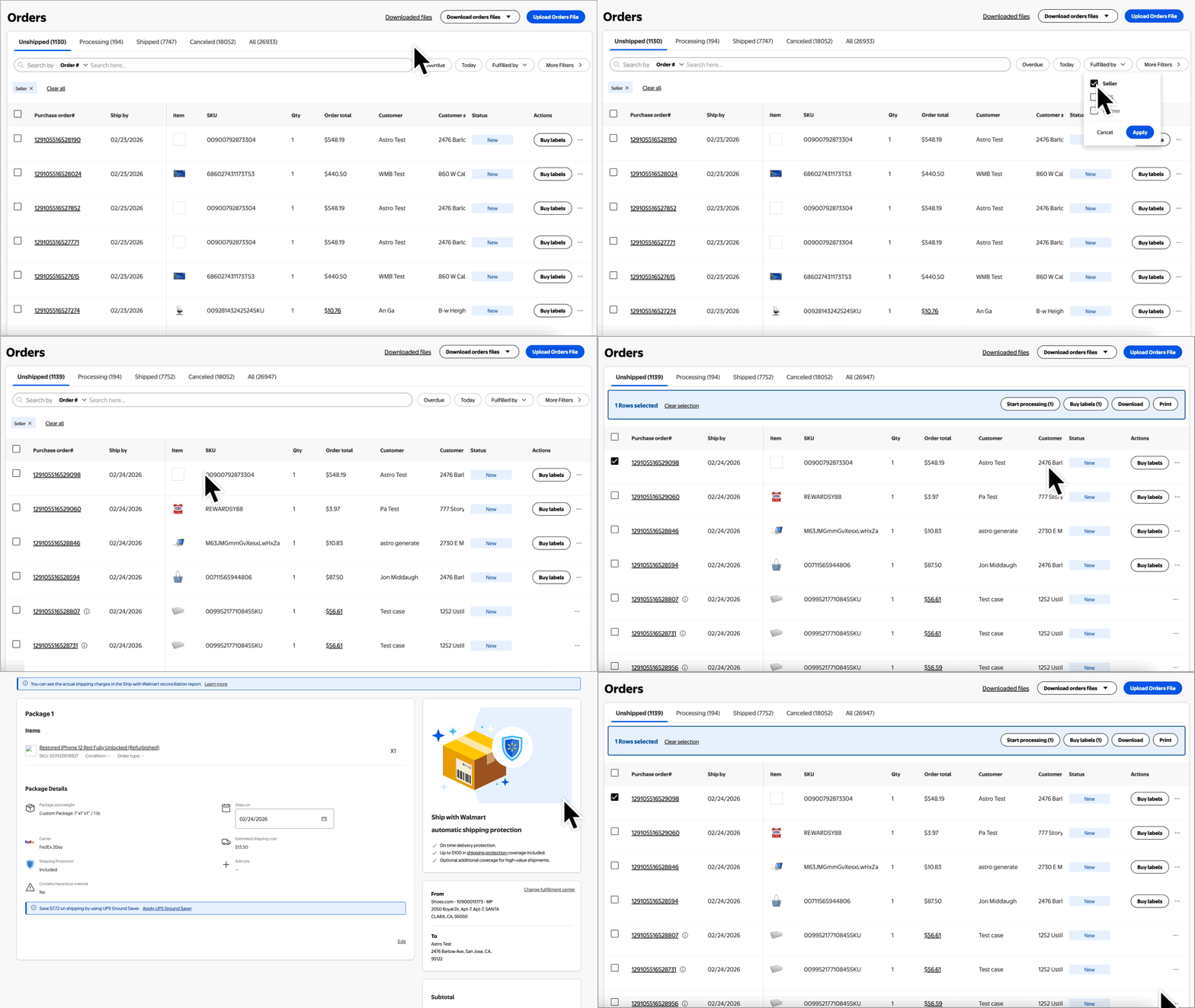
In the Unshipped tab, locate the order for the package you want to ship and ensure the Fulfilled by column for the items says Seller. Select the Buy labels button.
On the Buy labels page, input the necessary package details including quantity, package size, weight, Ships on date and if the package contains hazardous materials. The Ships on date determines when the order will be marked as Shipped automatically.
Next, select your preferred carrier to ship the package, ensure it meets your delivery promise and review the shipping label rates.
The carrier prices shown are estimates and may vary based on the actual weight and size once scanned by the carrier. Select any Add on services, then choose the Buy label button to complete the purchase.
Your shipping preferences are prioritized over lower-cost shipping methods. You can update them at any time before purchasing the label by selecting Edit package preset.
If you initiate the process of your purchasing a label but didn't finish it, the order will appear under the processing tab.
Bulk orders:
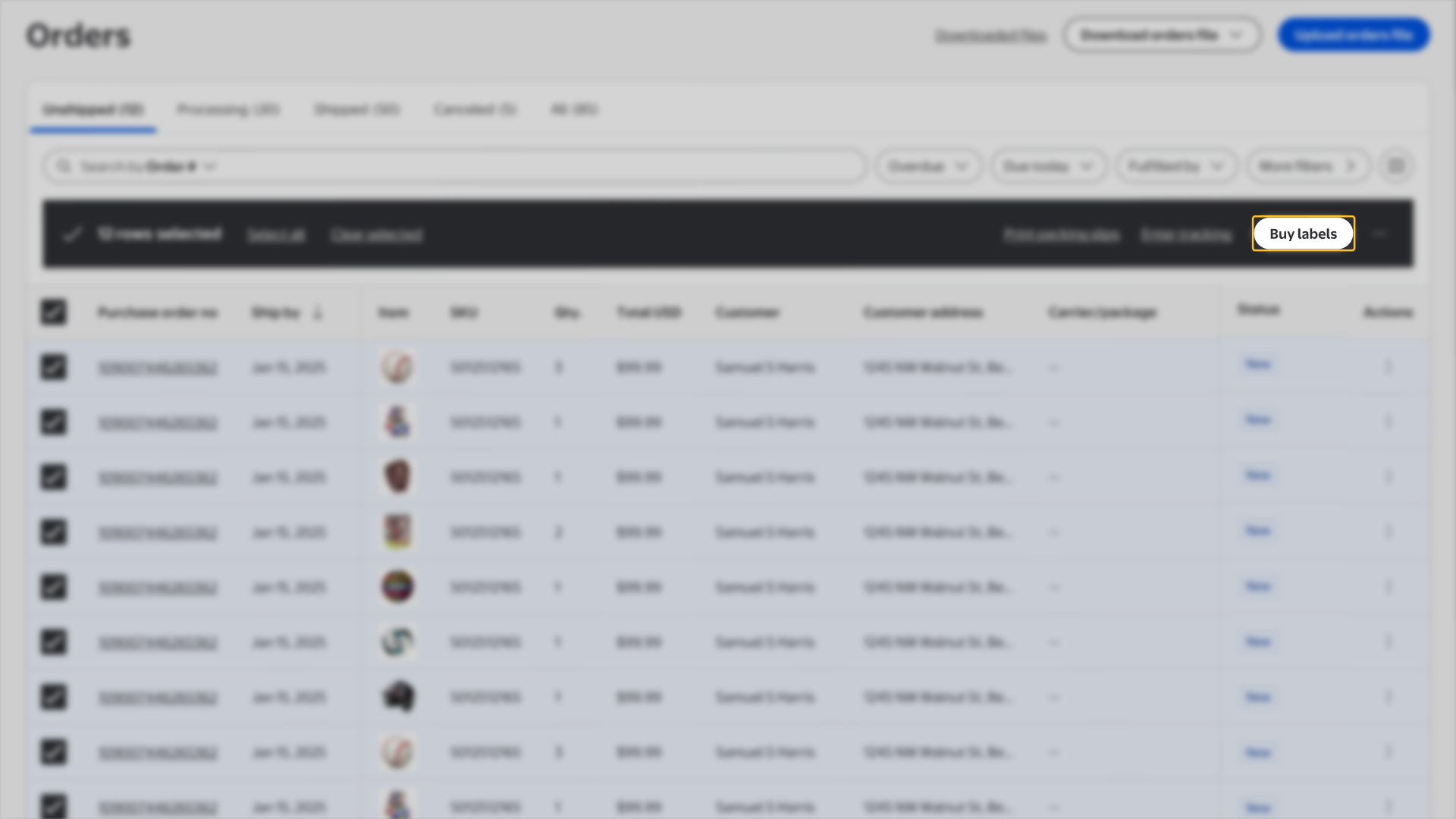
In the Unshipped tab, select the checkboxes next to multiple packages you want to ship. Select the Buy labels button.
Complete the required information for each row and select the Update button to get information and pricing to generate your shipping label. Finally, select all the rows that you want to buy labels for and choose the Buy shipping button to complete the label purchase.
To ship from a China fulfillment center, change the Ship from field to indicate items shipping from China. Provide the required information in Mandarin for Item description and the Ship from address. Then, choose the item that contains the checkbox to accurately state the contents in the package.
Select the Highlight missing fields button to learn which fields you need to fill out per package to complete the purchase (e.g., Ship method, Add-ons and Declared value).
Step 3 — Print the label and ship
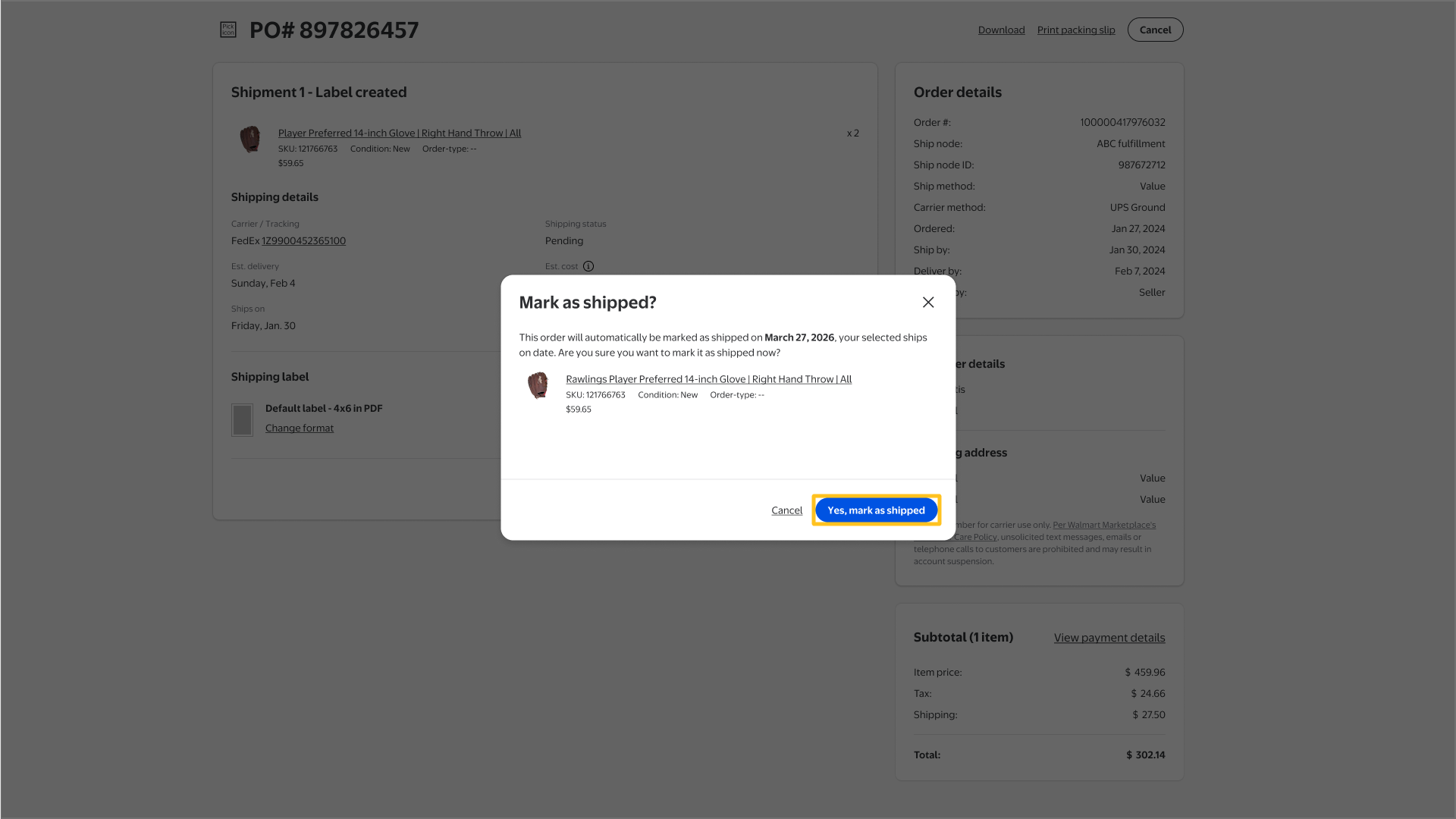
Once your label has been generated, select the Print label button. After printing the label, prepare the order for shipment. All orders are automatically marked as Shipped on the Ships on date set by you. If you ship early, you can override the Ships on date and mark the order as Shipped manually. However, once the order is marked as Shipped, the label can't be canceled or modified.
The final cost of the shipping label will be reflected in your Payments Statement Summary as a Walmart Shipping Label Service charge.
You can cancel labels by selecting Cancel, and you won't be charged until the item is marked as Shipped. You'll still be charged if you cancel the label purchase and the label is used.
Step 4 — Generate USPS Shipment Confirmation Acceptance Notice (SCAN) form (optional)
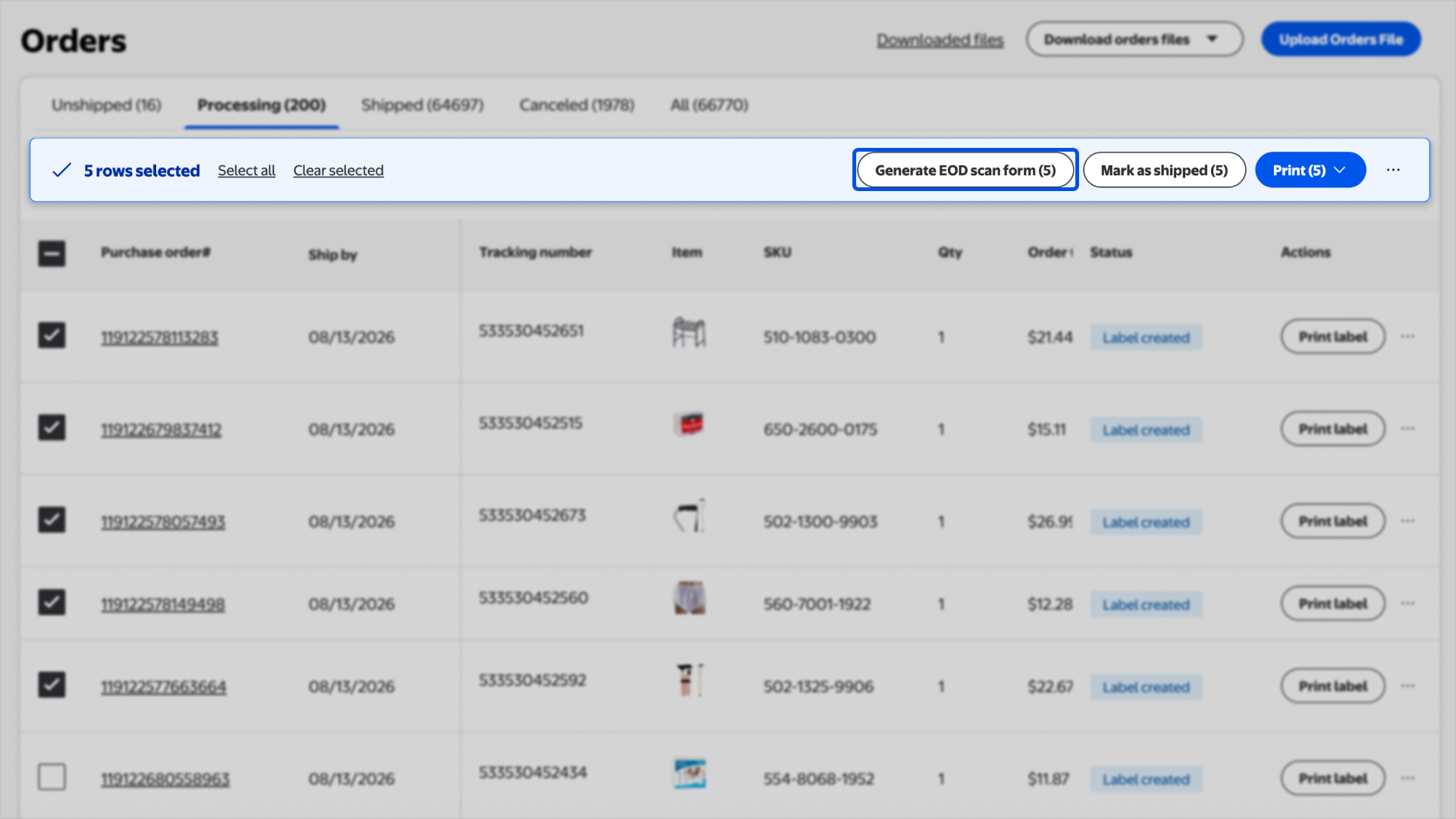
Once a label is created, you can generate a USPS SCAN form to consolidate a minimum of five unshipped orders with USPS Standard or Priority Mail Express labels into a single form for batch scanning. From the Processing tab, choose the Generate scan form button and fill out the fulfillment center and carrier details.
Download the form and provide it to your USPS carrier at pickup or drop-off. USPS will scan one barcode on the form, accepting all packages at once. Once the barcode is scanned and accepted by USPS, the order is marked as Shipped in Seller Center. Once a form is created, it can’t be edited. Additionally, shipments can’t be added or removed from a form.
Access to preferred carrier rates for eligible shipments are subject to this program’s Terms of Service.