You can manage local orders directly in Seller Center as part of the order fulfillment process. Local orders are organized into four categories: New, Orders in Progress, Completed and Canceled. In this guide, you’ll learn how to manage, cancel or adjust and process local orders in Seller Center.
Participation in the Local Marketplace program is only available for Marketplace sellers with brick-and-mortar store locations in select regions.
To receive Local Marketplace order alerts on mobile, turn on notifications in the Seller Center app and in your phone settings or enroll in new order SMS notifications.
Process an order
Step 1 – Get started
Navigate to the Orders dashboard in Seller Center to process an order. If you’ve also enrolled in the self-fulfilled business, you’ll find your local order through the Local Orders dashboard.
If you have multiple store locations associated with a partner ID, you’ll need to select the store you’d like to view.
Step 2 – Review orders
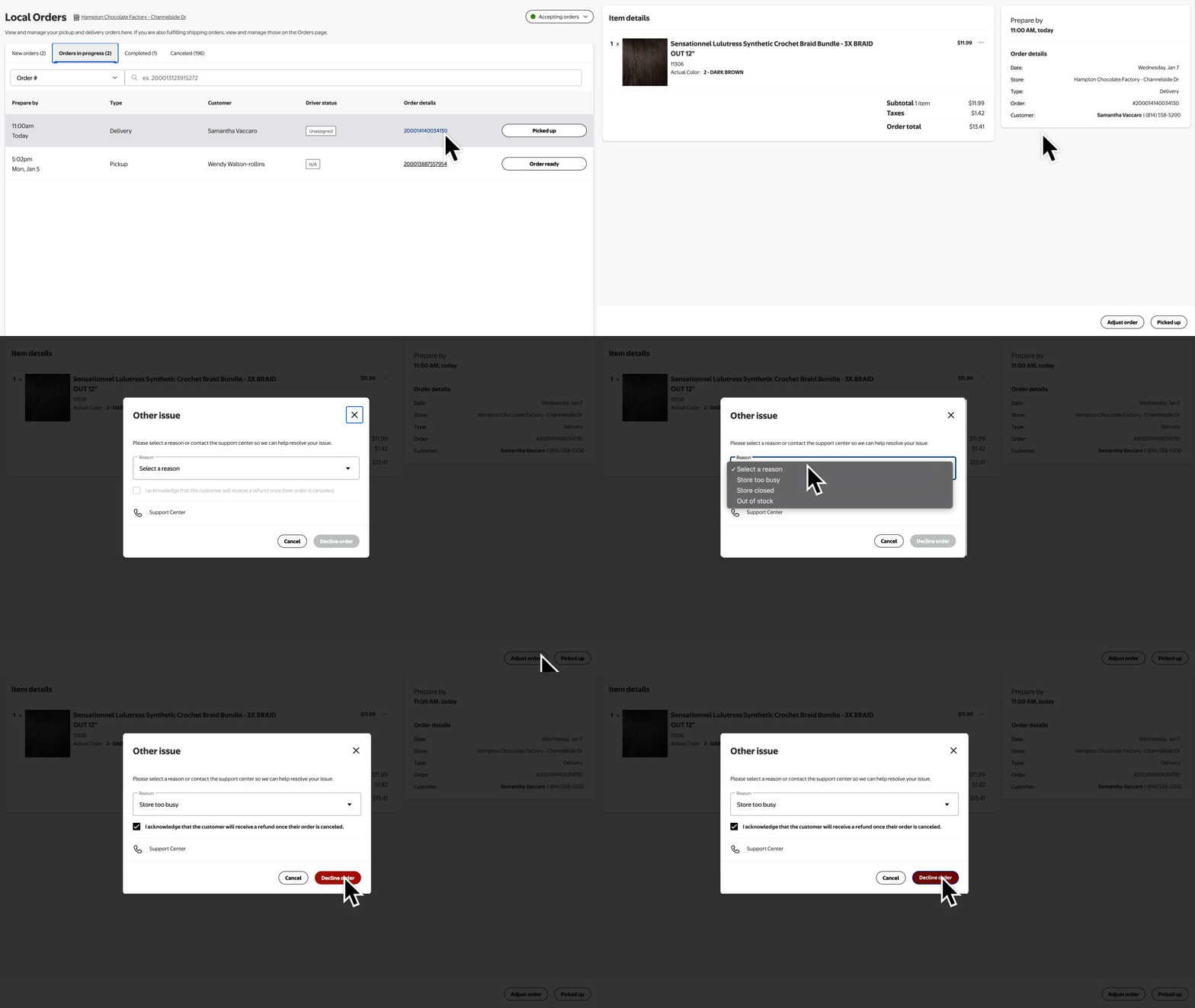
Orders are automatically accepted and will appear under the Orders in progress section. You can review when the driver will arrive in the Prepare By column and view the order contents by selecting the order number under the Order details column. On the Order details page, you can adjust or fully cancel the order.
Auto-accept can be deactivated but will result in your store needing to manually accept orders within the next 60 operating minutes and may result in excess cancellations.
Adjust or cancel an order
Step 1 – Get started
Navigate to the Orders dashboard in Seller Center. Select the order number under Order details for the order you’d like to cancel or adjust through the Local orders dashboard. Then, select Adjust order.
If a customer requests to cancel an order, you’ll receive an email notification and the order number will have an exclamation point next to it in Seller Center. You can subscribe by navigating to Account, selecting Notification settings and choosing New orders local. You can also enable push notifications in the Seller Center app by navigating to Account and selecting Manage notifications
Step 2 – Adjust or decline an order
If you can only fulfill part of an order, select Item availability from the pop-up menu and update the quantities for the items you’d like to adjust. Then, select the checkbox to acknowledge that the customer will receive a refund for unavailable items and choose Update order.
To decline an order, choose a reason from the dropdown menu and select the checkbox to acknowledge that the customer will receive a refund if the order is canceled. Then, select Decline order. You’ll receive a notification to confirm that the order is no longer being processed.
Cancellations aren’t recommended and can’t be reversed.