Once you’ve been accepted to the Local Marketplace program, the next step is to create a store. In this guide, you’ll learn how to set up your store in Seller Center.
Participation in the Local Marketplace program is only available for Marketplace sellers with brick-and-mortar store locations in select regions.
Add new stores
Step 1 – Get started
Navigate to your Account page. In the Shipping Profile section, select Local fulfillment.
Step 2 – Create new store
On the Local fulfillment page, select Create new store.
The option to create a new store is currently unavailable for alcohol retailers.
Step 3 – Find and update store details
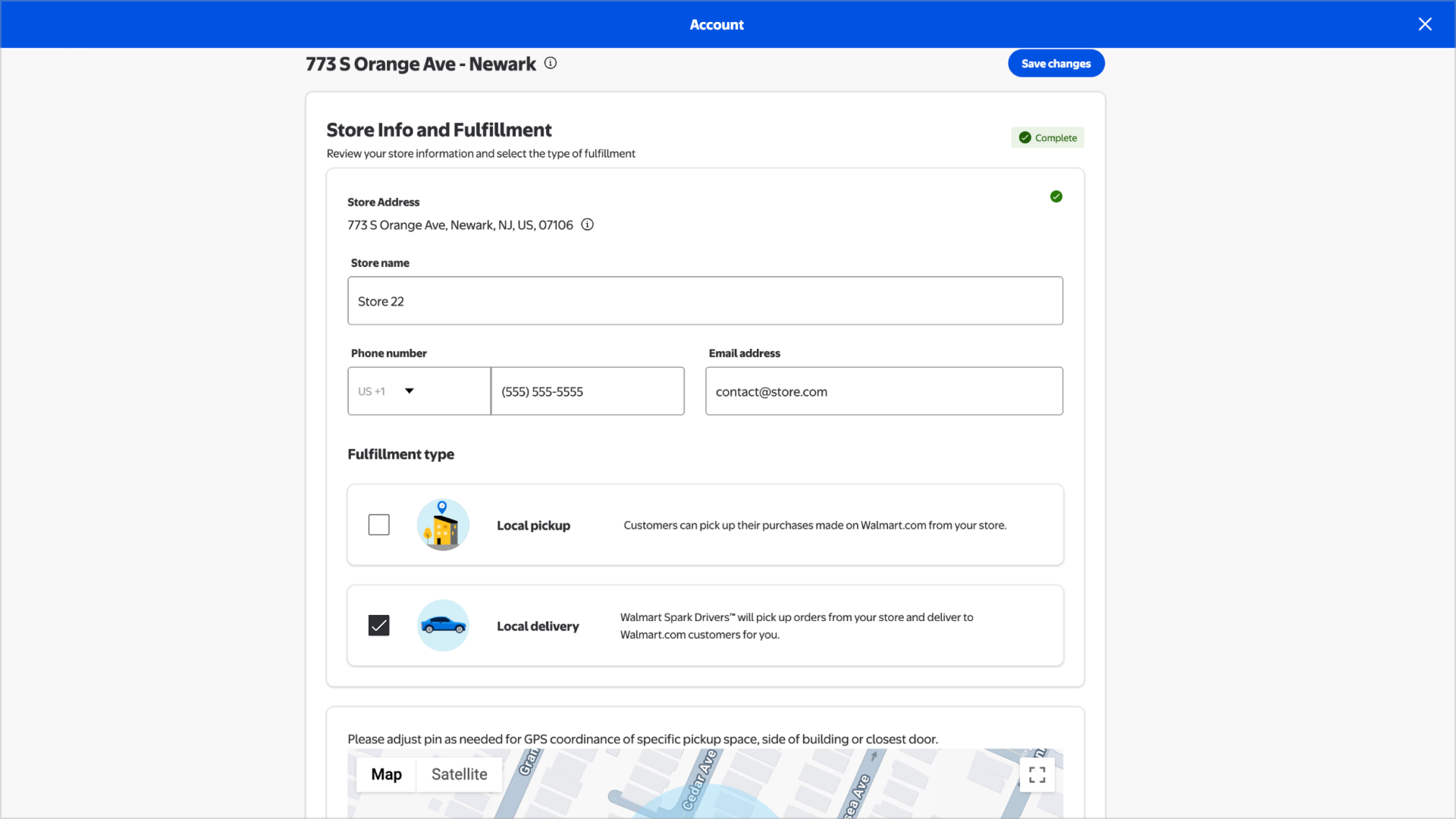
To find your store, enter your store’s name and choose your store address from the search results. Then, select Next. Review and update all of your store details (ex. store name, contact details, operating hours, pickup instructions and prep time).
In the Fulfillment type section, select Local delivery for the Walmart driver to pickup orders from your store and deliver to a customer’s address.
Once you’ve filled out and verified all the details on this page, select Save.
You can locate your store's delivery status on the Local fulfillment page, which provides the list of all the stores created.