Getting started
Item setup
Catalog management
Walmart Fulfillment Services (WFS)
WFS basics
Getting started with WFS
WFS item setup
Shipping to WFS
WFS Inventory management
Walmart Cross Border - Imports
Walmart Cross Border: Imports - Overview
Walmart Cross Border: Imports - How to enroll
Walmart Cross Border: Imports - Estimate pricing and book a shipment
Walmart Cross Border: Imports - How to edit or cancel a booking
Walmart Cross Border: Imports - Prepare an international inbound shipment
Walmart Cross Border: Imports - Track international inbound shipments
Walmart Cross Border: Imports - Less than container load (LCL) shipments
Walmart Cross Border: Imports - Involved parties and signatory parties
Walmart Cross Border: Imports - Shipping charges, billing and payment
Walmart Cross Border: Imports - Shipping dangerous goods
Walmart Cross Border: Imports - Glossary
Walmart Multichannel Solutions
WFS growth opportunities
WFS policies & standards
WFS programs & services
Troubleshooting
Seller Fulfillment Services
Listing optimization
Order management
Taxes & payments
Policies & standards
Growth opportunities
Advertising
Walmart Seller appNew


In this guide, you will learn how to track your Walmart Cross Border: Imports shipments from origin to Walmart Fulfillment Services (WFS) receiving.
How does it work?
The tracking info for each Walmart Imports shipment can be accessed via the 3 dots next to that shipment on the International tab of the Shipments page.
The Tracking tab has two main sections: “Transport plan” and “Tracking.”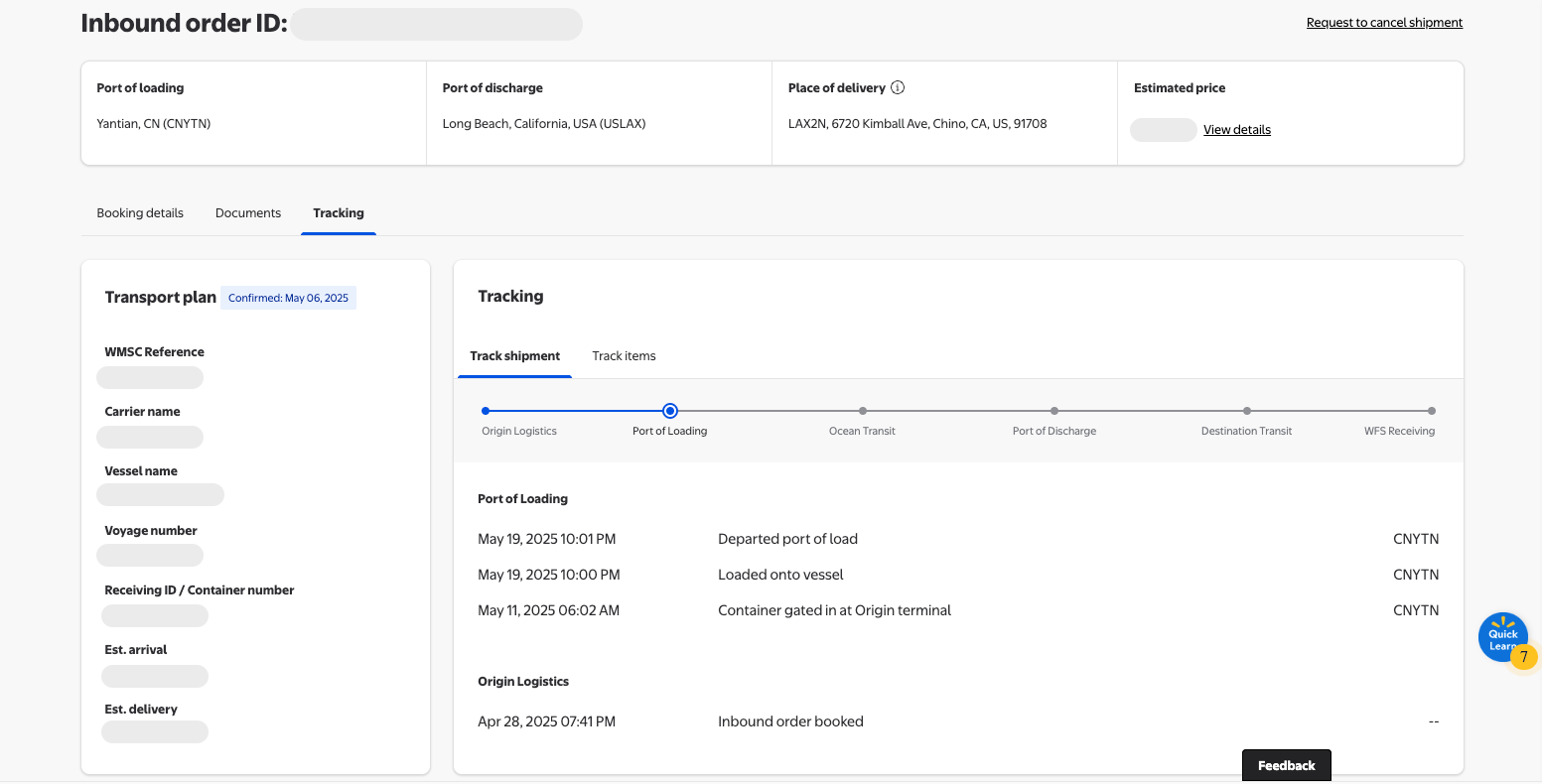
“Transport plan” includes specific shipment details like the carrier name, voyage number, and important identification numbers like reference numbers, receiving IDs (this ID created by WFS upon booking creation) and container numbers (this number is painted on your physical shipping container). You’ll also see estimated dates for your shipment’s departure from the port of origin, arrival at port of loading, and delivery to its final destination, aka your assigned fulfillment center.
Estimated Delivery Date (EDD)
The Estimated Delivery Date (EDD) helps you plan when your products will arrive at the fulfillment center. The EDD is automatically calculated using your Cargo Ready Date (CRD), transport plan, and shipping route. When you update your CRD, the EDD automatically adjusts to reflect the new shipping schedule.
EDD updates appear on both your Shipping Plan and Tracking pages. You can also view your EDD history to see all previous updates for your shipment.
How to View and Track EDD Updates
- Go to your shipment in Seller Center under International.
- Open the menu (three dots) next to your booking and select Booking detail.
- Review your original CRD and EDD displayed on the page.
- To view historical changes, go to your Tracking page and select View updates.
- The View updates link is located on the Tracking page.
- A pop-up window displays all historical EDD changes.
- The first line shows your original EDD when the booking was created.
- When your CRD changes and a new EDD is calculated, a new line appears with the updated EDD and the date of change.
Keep in mind that sellers can’t manually update the EDD. The EDD is automatically calculated based on your CRD and shipping plan.
How to Update Your CRD (and How It Affects EDD)
- In your Shipping Plan, open Booking detail.
- Locate the Cargo drop-off date (CRD) and select Manage.
- Enter your new CRD and save the update.
If your new CRD changes the shipping timeline, your EDD automatically updates. The updated EDD appears on your Shipping Plan, Tracking pages, and in the View updates pop-up window alongside the previous EDD. Once your shipment has been assigned to a transport plan, the CRD can’t be changed.
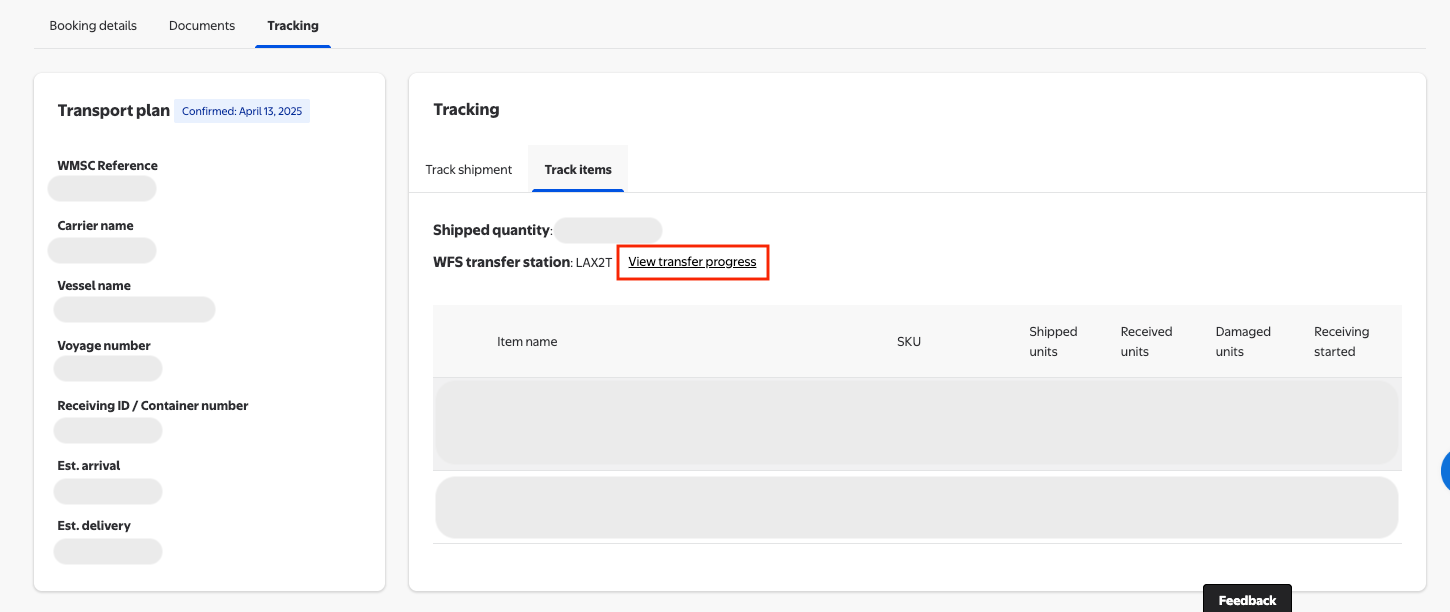
"Tracking" has two tabs that will populate as events occur. The first tab, “Track shipment,” gives you insight into where your overall shipment is from origin through the completion of receiving. To learn more about Leg 2 (at the fulfillment center) tracking steps, see the WFS Inventory Transfer Service: Overview guide. The second tab, “Track items,” shows you receiving details at the fulfillment center for each item. Items from Imports shipments are checked in and made available to sell within the same timeframe as domestic inbound shipments.
Multiple containers
If your shipment contains multiple containers, the “Track shipment” tab will only show the events for one container at a time. Use the dropdown menu in the upper right corner of the “Tracking” section to select a different container and see its tracking events. 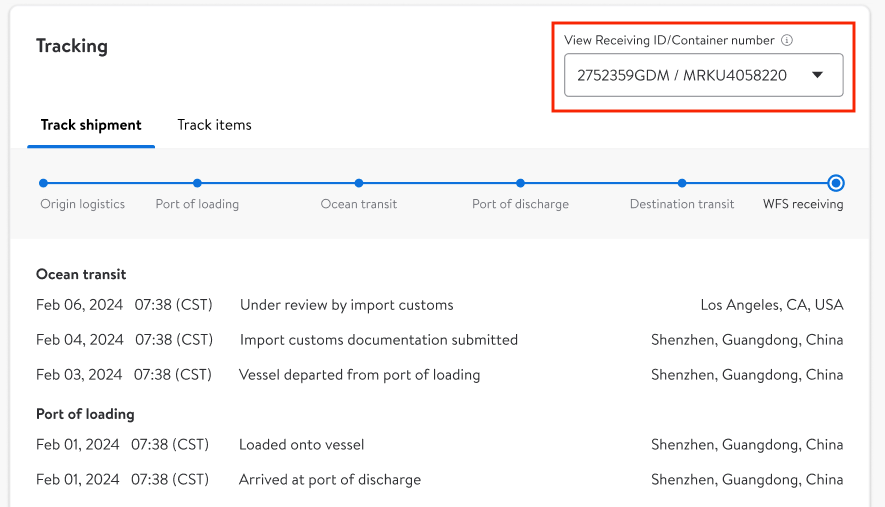
Bulk download shipment milestones
Another option you can use to quickly see and download the latest tracking information for all your shipments is the bulk download feature. The advantage of this feature is that it makes so you don’t have to open each shipping record individually.
On your Shipping Plan page, To choose what information you see:
- Select the Configure button at the top right.
- In the Configure Column box, drag and reorder the options to display the details that matter to you most. You can choose from:
- Shipment ID
- Date Created
- Origin
- Mode
- Ship To
- Estimated Delivery
- Status
There are also some new options you can select: Container Number, Tracking Details, Timestamp, Shipped Units, and Received Units.
This feature allows you to set up your Shipping Plan view the way you want and quickly see the latest tracking status for all your shipments, without opening multiple tabs. This is especially helpful if you manage many shipments at once.
To download your shipment data:
- Select the Download button next to Configure.
- Under Download Shipments, choose the items you want to include in your CSV file.
- Pick whether to download the current page or all shipments.
- Tap Download to generate a CSV file with the details you selected.
By configuring and downloading your shipment view, you can get all the tracking information you need in one place, making it easier to manage your shipments efficiently.
Understanding tracking events
The “Track shipment” tracking events are grouped into stages along the horizontal progress bar:
Origin logistics
Port of loading
Ocean transit
Port of discharge
Destination transit
WFS receiving
The page shows a mix of both physical events (for example, “Departed from port of discharge”) and administrative events (for example, “Import customs documentation submitted”).
Each shipment’s Tracking tab will show its unique events that are applicable to it. For example, shipments using rail transportation will show additional rail-oriented events under “Destination transit” on the “Track shipment” tab. Shipments using Inventory Transfer Service (ITS) will provide transfer progress updates at the unit level on the “Track items” tab. If a shipment doesn’t include rail transit or ITS, you wouldn’t see those events.
Check status of scheduled delivery
It’s possible to see when your shipment is scheduled for delivery to the Walmart Fulfillment Center. This will give you a better idea of the current status of the shipment while it’s at the WFS terminal, so you can plan for the next steps in the process.
To check the status of a scheduled deliver, go to the Tracking page, and under the Track Shipment tab:
- Look for the WFS Fulfillment Center delivery scheduled hyperlink.
- Hover over or tap the link to see when your shipment was scheduled for delivery.
This shows:
- When the delivery schedule was created in the Fulfillment Center system.
- The expected date your shipment will be dropped off at the Fulfillment Center or ICC yard.
By checking this, you can track the progress of your shipment at the terminal and stay informed about when it will reach the Fulfillment Center.
How to get proof of delivery
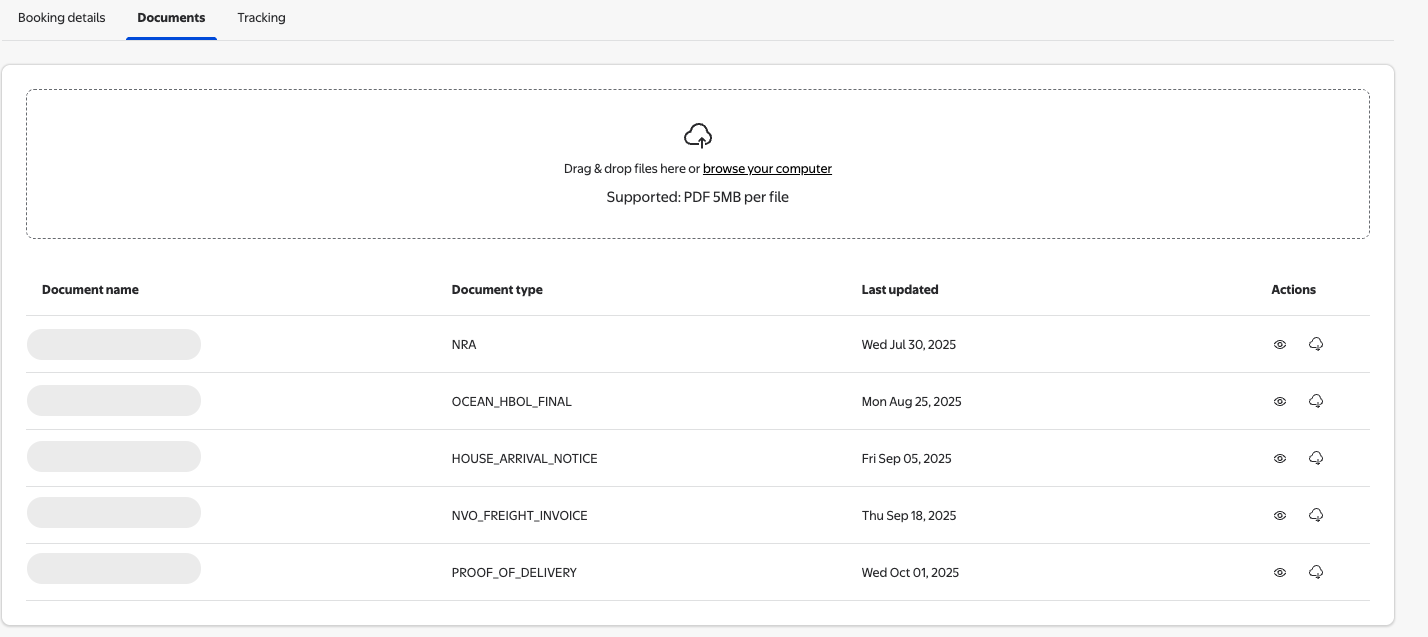
To get proof of delivery, just click Documents next to Tracking to see everything related to your shipment. To view a specific document, select the "i" icon -- this will open in a popup window so you can easily print, download, or share it.
Exception events
Exception events occur when your shipment encounters a delay or requires additional action (for example, “On hold by import customs” or “Export customs clearance audit failed”). In these cases, you can select the event to view guidance on how to resolve the issue.
Inventory questions and disputes
We update the Tracking page for each shipment as soon as we get new information from our transportation partners and fulfillment center teams. If you have a question about your inventory, be sure to check the “Track items” tab and any included links (like “View transfer progress” for shipments including ITS) before opening a dispute claim with Seller Support.