Getting started
Item setup
Catalog management
Walmart Fulfillment Services (WFS)
Seller Fulfillment Services
Listing optimization
Order management
Order status
Customer care
Returns & refunds
Seller-fulfilled returns policy
Returns insights: Overview
Update seller-fulfilled return center settings
Update seller-fulfilled return label settings
Create item-level return rules
Request a return policy exemption
Add Keep It Rules
Issue a standard refund in Seller Center
Issue adjustments or non-standard refunds in Seller Center
Add Replacement rules
Troubleshooting
Taxes & payments
Policies & standards
Growth opportunities
Advertising
Walmart Seller appNew


By uploading a Return rules update template in Seller Center, you can customize your return settings at the item level and prioritize them over category-level return rules. In this guide, you’ll learn how to set up your return rules. If you need to set up return exemptions for hazmat, freight or custom items, you’ll need to request approval from Walmart first.
Create return rules
Step 1 – Get started
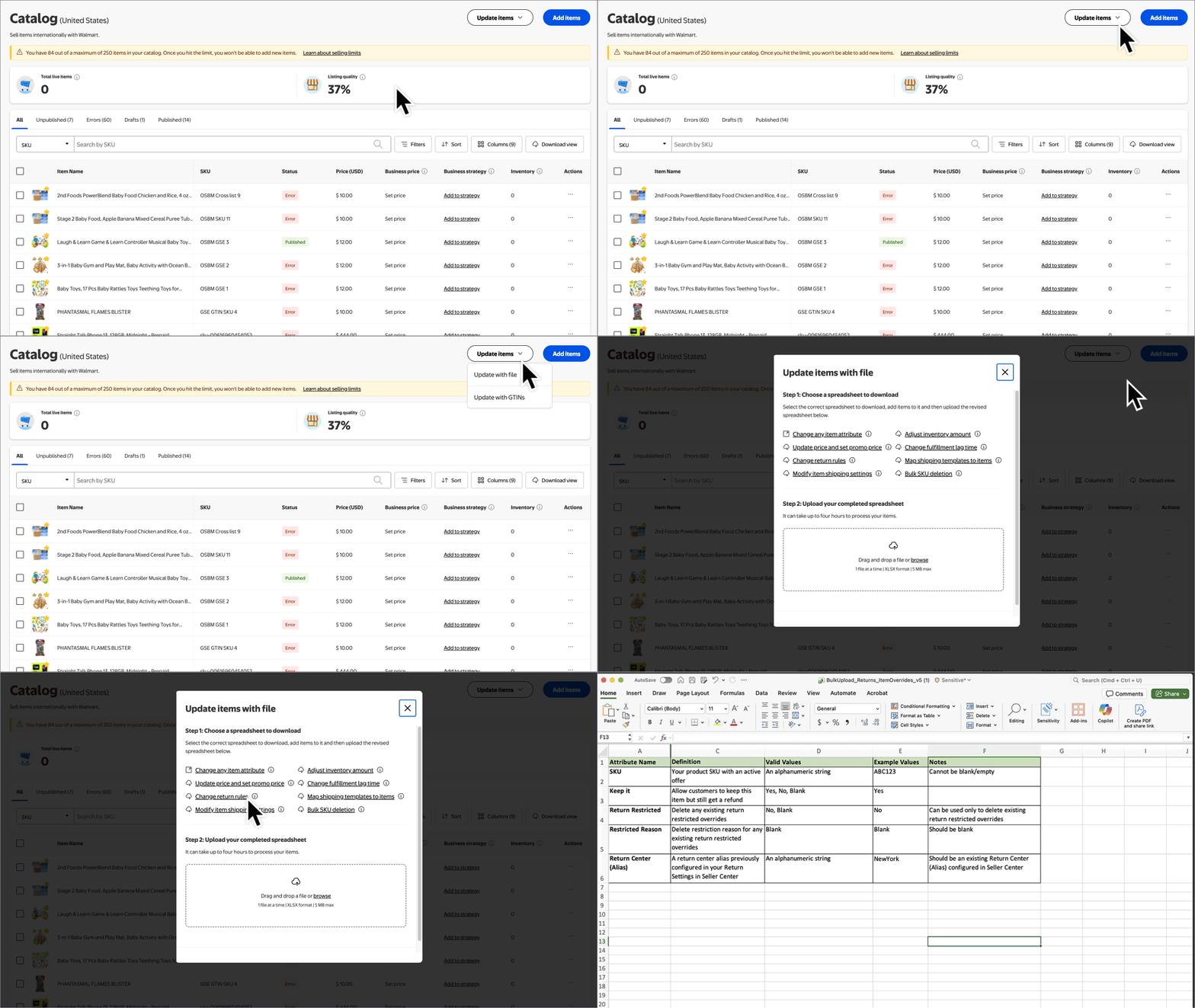
Navigate to your Catalog in Seller Center. Select the Update items button and choose Update with file from the dropdown menu.
Step 2 – Download and complete the template
Select the Change return rules link and save the template to your computer. Then open the template and make your updates.
Step 3 – Upload the template
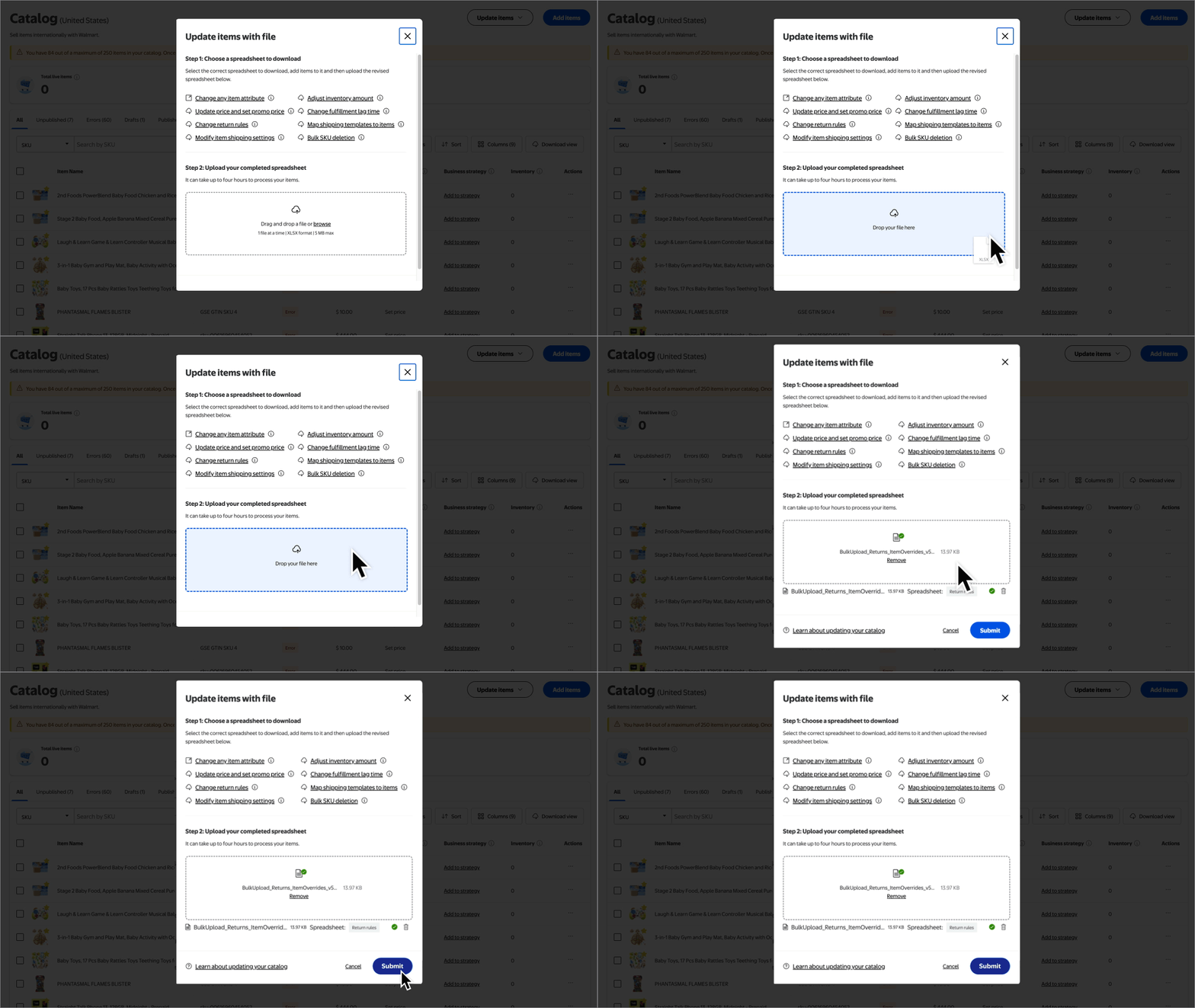
Navigate back to your Catalog and select the Update items button and choose Update with file. Then use the file browser window to upload the template. When you’re ready, select Submit.
You’re responsible for ensuring your return rules are accurate. You’ll be responsible for all costs generated as a result of any return setting applied in error.